How to use the 5.1 surround sound test
- Turn the volume down on your receiver or computer. The test starts at 25% and fades in.
- Press Detect output. The output card shows how many channels your browser can send.
- Press Play all. Each speaker plays a short noise burst in turn. The subwoofer hums last. Watch the diagram: the speaker that should be playing lights up.
- Mark each speaker as Right place, Wrong speaker or Silent. The tool names silent and swapped speakers and says what to change.
- Fix and run it again. Click any speaker in the diagram to replay just that one, or press keys 1 to 8.
If the card says 2 channels, your browser can’t reach each speaker. Download the 5.1 or 7.1 test file below the tool and play it on your receiver, TV or computer instead.
Why your browser may show only 2 channels
A browser sends separate surround channels only when the operating system’s output is set to 5.1 or 7.1. Out of the box, most computers are set to stereo, so this surround sound test reports 2 channels.
- Windows: open the classic Sound control panel (Settings > System > Sound > More sound settings), select your HDMI or surround device on the Playback tab, press Configure and choose 5.1 or 7.1 Surround.
- macOS: open Audio MIDI Setup, select the output device, press Configure Speakers and choose a 5.1 or 7.1 layout.
The connection matters too:
- HDMI to a receiver carries up to 8 channels of uncompressed audio. This is the most reliable way to run a 5.1 surround test from a computer.
- TV ARC carries stereo, or surround only in compressed formats. eARC carries full multichannel audio.
- Optical carries stereo, or compressed 5.1. Browser audio over optical stays stereo unless your sound card encodes surround in real time.
Phones, most laptops and Bluetooth speakers report 2 channels, which is normal.
Speaker layout for 5.1 and 7.1
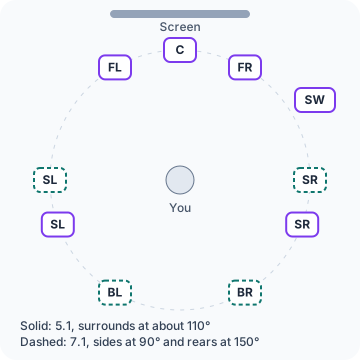
A 5.1 system has 6 channels: front left, center, front right, surround left, surround right and the “.1”, the low-frequency effects channel that feeds the subwoofer. The front pair sits about 30° either side of the screen, with the center straight ahead.
In 5.1, the surround speakers go slightly behind your seat, about 110° from the front. Put them a little above ear height and aim them at the listening position.
The subwoofer has no fixed place, because low bass is hard to locate. Start near the front, then move it if the bass sounds boomy. Receivers add 10 dB to the LFE channel, so this test plays it 10 dB lower than the other speakers.
7.1 surround sound test: side and rear speakers
7.1 adds a rear pair to 5.1. The side speakers move to about 90°, level with your seat, and the rear speakers sit behind you at about 150°.
Mixing up the side and rear pairs is the most common 7.1 wiring error. In a 7.1 test, “surround left” should come from beside you and “rear left” from behind. If both pairs play each other’s names, swap them at the receiver. If the swap happens only in your browser, try the Alternate channel order in the tool’s settings.
Understanding your results
| Result | What it means | What to do |
|---|---|---|
| All speakers play from the right place | Wiring and setup are correct. | Check the bass level with the subwoofer test. |
| A speaker is silent | No signal reaches it, or it’s set to None. | Check its cable, the receiver’s speaker setup and the speaker itself. |
| Two speakers are swapped | Their cables are crossed. | Swap the two cables at the receiver. |
| A speaker plays from the wrong place | One cable goes to the wrong terminal. | Follow that cable from the speaker to the receiver. |
| No subwoofer hum | The sub gets no LFE signal. | Check power, the LFE cable, the subwoofer setting and the sub’s volume. |
| Only the front speakers play | The receiver or computer is mixing to stereo. | Use Direct or Straight mode and turn off audio enhancements. |
For the front pair, also check phase with the left right sound test. A speaker wired + to − sounds thin and vague.
Download a 5.1 or 7.1 test file
The test file works without a browser, which helps with TVs, receivers and media players. Each speaker plays a short noise burst in turn, and the subwoofer hums at the end, just like Play all.
The files are 16-bit, 48 kHz WAV with a channel mask, so players know which channel goes to which speaker. The 5.1 file is 22 seconds long and the 7.1 file is 29 seconds.
Play the file in VLC on a computer connected by HDMI, or copy it to a USB drive and open it with the media player on your TV or receiver. Standard MP3 files hold at most 2 channels, so a 5.1 audio test must come as WAV or a similar multichannel format.
Surround test on a TV, PC, console or headset
For stereo devices, the quick sound test checks left and right in 10 seconds. Browsers can’t output Dolby Atmos or DTS:X, so this page covers 5.1 and 7.1 channels only.
TV and soundbar
TV web browsers usually output stereo, so play the WAV file from a USB drive instead. A soundbar connected by ARC may receive only stereo from the TV; eARC passes the full 6 or 8 channels.
Windows 11 PC
Set your HDMI device to 5.1 or 7.1 Surround as shown above, then reload this page. The output card should report 6 or 8 channels. If the receiver’s display shows “Multi Ch PCM” or similar, the 5.1 test will reach each speaker.
PS5 and Xbox
Consoles don’t run this test in their web browsers. Use the speaker setup in the console’s sound settings, or test the receiver with the WAV file from a computer or USB drive.
Gaming headsets with virtual 7.1
Virtual 7.1 software may appear as an 8-channel device. Then the 7.1 test plays each burst from its own direction inside the headset. If the card reports 2 channels, the simulated preview shows where each speaker should sound. To check the headset’s left and right, bass and 3D placement, run the headphone test.